Polling Rate Test
How often does your mouse report to your PC? Move it quickly in the box to find out.
This test needs a mouse. Open this page on a computer.
- Now (Hz)
- –
- Average (Hz)
- –
- Max (Hz)
- –
- Reports
- 0
Counts every movement report your mouse sends, only while it’s moving, using the browser’s own timestamps.
Your polling rate
–
Closest standard rate, from your average
Method:
Polling rate, last 10 seconds
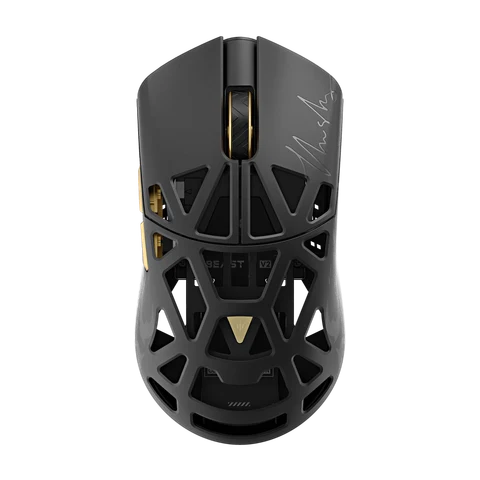
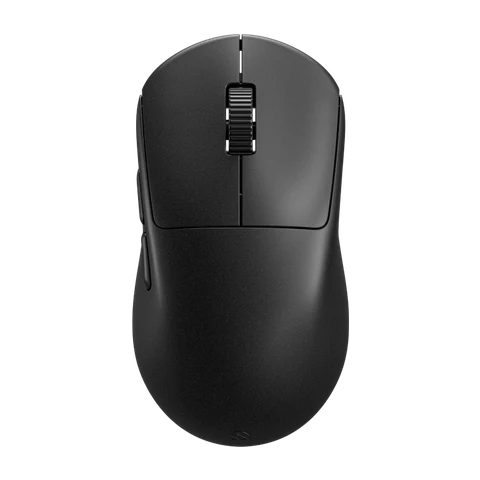
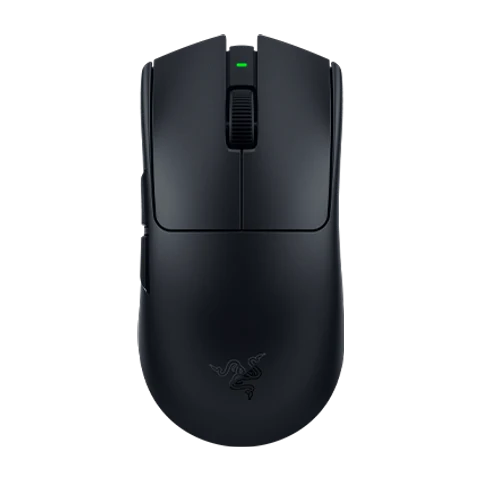
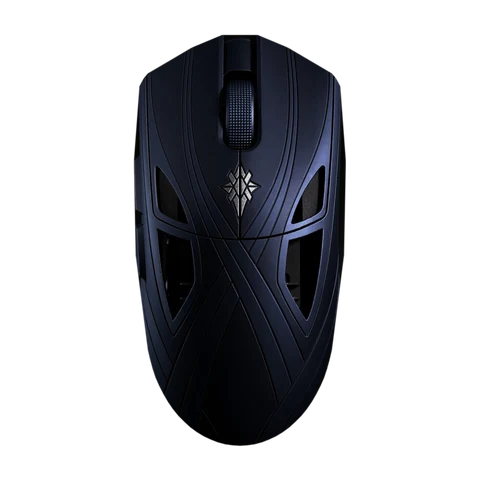
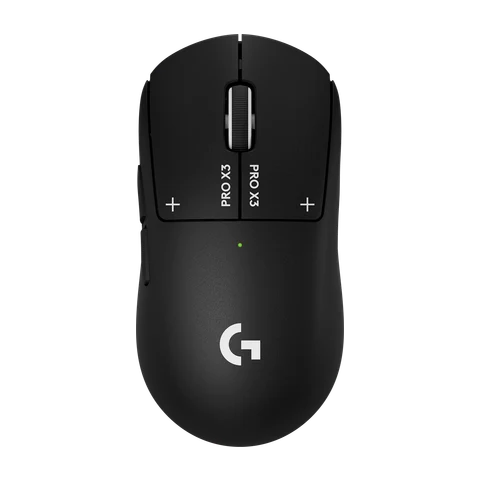
Top 5 gaming mice
Light, fast and accurate: the mice we’d pick right now.
How it works
Move your mouse quickly and smoothly in circles inside the box. Every movement report the mouse sends is counted, and the rate is reports ÷ time, counted only while the mouse is moving. When you stop, the test pauses instead of dropping to zero.
In Chrome and Edge the test uses "raw updates", which arrive as fast as your mouse sends them. Other browsers group reports together and hand them back in a batch. That works too, but the result can be a little lower. The method is shown under your result.
Your result shows the closest standard rate (125, 250, 500, 1000, 2000, 4000 or 8000 Hz). Moving slowly sends fewer reports, so move fast for a true reading.
Something wrong with this tool, or an idea for a new one? Tell us →
Polling rates compared
The polling rate is how many times per second your mouse tells your PC where it is. A higher rate means a fresher position and smoother movement, with smaller gains each step up.
| Polling rate | Time between reports | Good for |
|---|---|---|
| 125 Hz | 8 ms | Office use. Feels choppy on fast monitors. |
| 500 Hz | 2 ms | Fine for most games. |
| 1000 Hz | 1 ms | The usual gaming standard. |
| 4000 Hz | 0.25 ms | Smoother on 240 Hz+ monitors. Uses more CPU. |
| 8000 Hz | 0.125 ms | Top-end setups. Some games and PCs struggle. |
Lower than you expected?
Move faster
Mice only send reports when they move. Slow movement shows a lower rate than the mouse can do.
Check the mouse app
The polling rate is set in your mouse's software, or with a button on the bottom. Many mice ship at 1000 Hz.
Wireless and USB
Use the wireless receiver close to the mouse (or its extension cable), and plug it straight into the PC, not a USB hub.
Above 1000 Hz
4000 and 8000 Hz need a fast PC, and sometimes a special receiver. Try Chrome or Edge for the most accurate reading.
Questions
How do I check my mouse polling rate?
Move your mouse quickly in circles inside the box for a few seconds. The test counts every report the mouse sends and shows the closest standard rate.
Why does my 1000 Hz mouse show less?
Usually because the mouse moved too slowly; it only sends reports while moving. Other causes are a USB hub, a wireless receiver far away, or a browser that groups reports. Chrome and Edge read it most accurately.
Is 1000 Hz enough for gaming?
For most players, yes. 1000 Hz means a new position every millisecond. Higher rates help most on 240 Hz and faster monitors, where you can see the smoother movement.
Does a higher polling rate use more CPU?
Yes. 4000 and 8000 Hz make the PC handle many more updates per second, which can cause stutter in some games on slower PCs. If that happens, go back to 1000 or 2000 Hz.
How do I change my polling rate?
In your mouse's app, or with a button on the bottom of the mouse. Some wireless mice need a special receiver for 4000 Hz and above.
Related tools
More tools you might like