Mouse Latency Test
How long does your mouse take to reach the screen? Measure the part your PC and browser add.
This test needs a mouse. Open this page on a computer.
- Event delay
- –
- Input → frame
- –
- Best
- –
- Screen
- –
Middle values (median) of all samples
Measured from your system’s own time-stamp on each mouse event. The delay inside the mouse and inside the monitor can’t be seen by a browser and isn’t included.
Every sample · Samples: 0
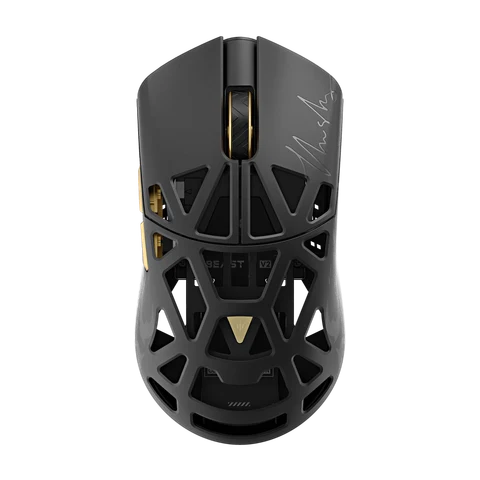
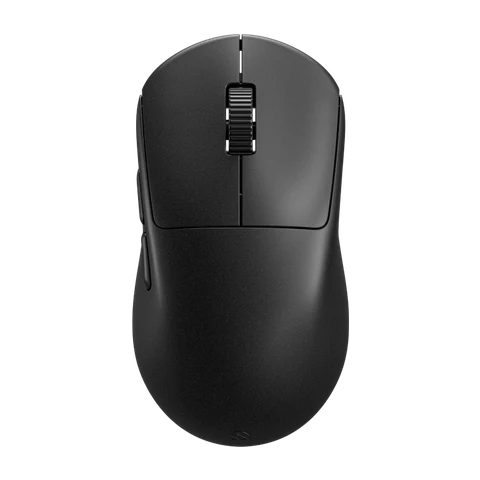
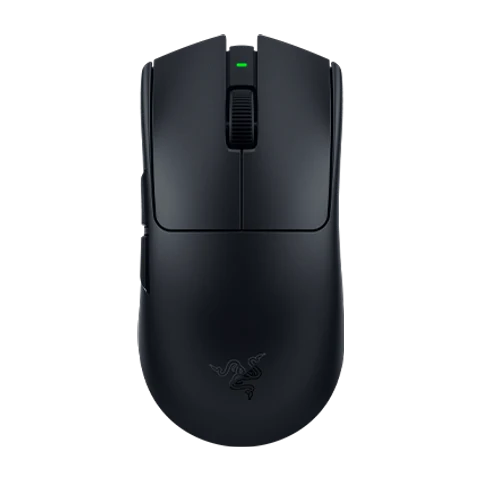
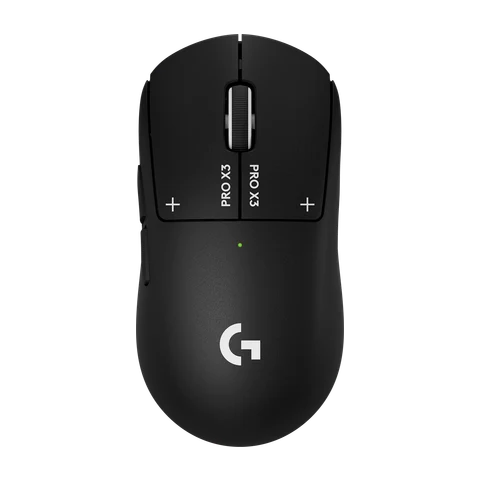
Top 5 gaming mice
Light, fast and accurate: the mice we’d pick right now.

How it works
Click in the box many times (or switch to Movement and move the mouse around). For every event, the test takes the time-stamp your system gave it and measures two things: event delay, how long until the page could handle it; and input → frame, how long until the next screen frame started, the first frame that can show the result.
The numbers shown are medians (the middle value), so one slow moment doesn't spoil the result. The screen box shows your refresh rate, measured from the time between frames. A higher refresh rate means a shorter wait for the next frame.
Be aware: no website can measure the full chain. The delay inside the mouse (its switch, sensor and USB report) happens before your system time-stamps the event, and the monitor adds its own delay after the frame is sent. Measuring those needs special hardware, like a high-speed camera. This test shows the part in between, which is the part your PC, settings and browser control.
Something wrong with this tool, or an idea for a new one? Tell us →
How to lower your latency
Higher refresh rate
The wait for the next frame is up to one frame long: about 16.7 ms at 60 Hz, but 4.2 ms at 240 Hz.
Higher polling rate
A 1000 Hz mouse reports every 1 ms; a 125 Hz mouse every 8 ms. Check it with the Polling Rate Test.
Close busy programs
A high event delay usually means your PC or browser is busy. Close heavy tabs and apps and test again.
Game settings
In games, turn off V-Sync and use the game's low-latency mode (like NVIDIA Reflex) for the biggest gains.
Related tools
More tools you might like