Mouse Acceleration Test
Does a fast flick move your cursor further than a slow move over the same distance? Find out.
This test needs a mouse. On a phone or tablet there’s nothing to measure.
- Strokes
- –
- Slow average
- –
- Fast average
- –
- Difference
- –
- Put two marks on your mouse pad about 10 cm apart (tape, a ruler, or the pad’s edges).
- Click the box. Hold the left button and move from one mark to the other: first slowly (over 1 second), then in quick flicks (under 0.4 s).
- Start and stop exactly on the marks each time. The test compares how far the cursor went.
Your strokes
This reads the cursor after Windows has processed it, on purpose: that’s where acceleration happens. Differences under 6% count as none, because hands aren’t perfectly exact.
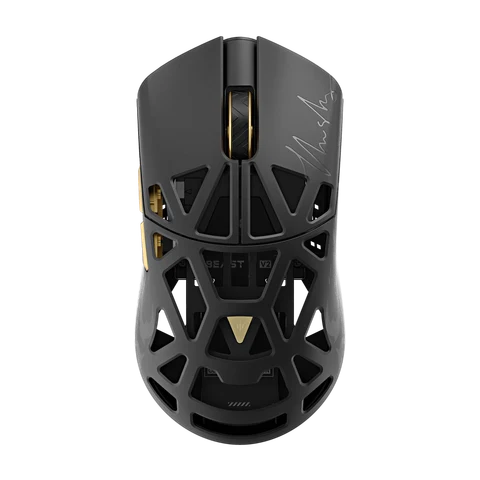
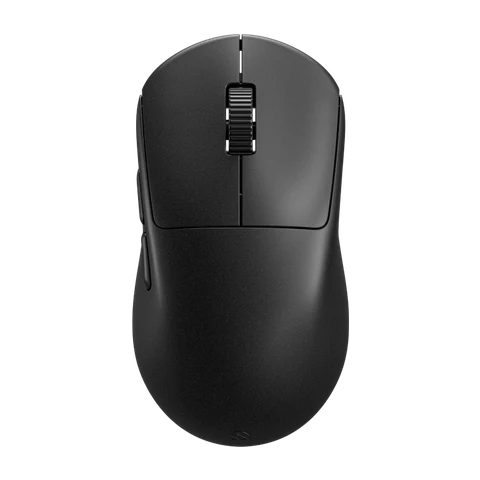
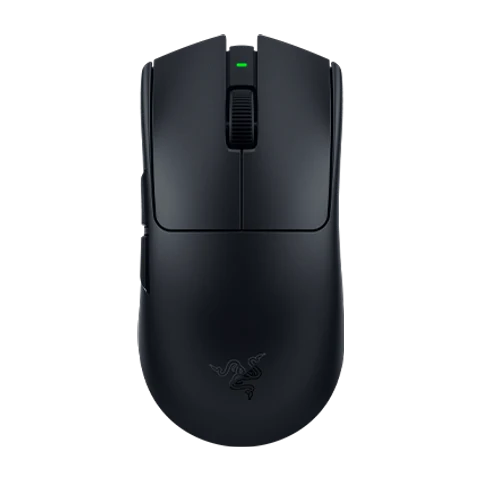
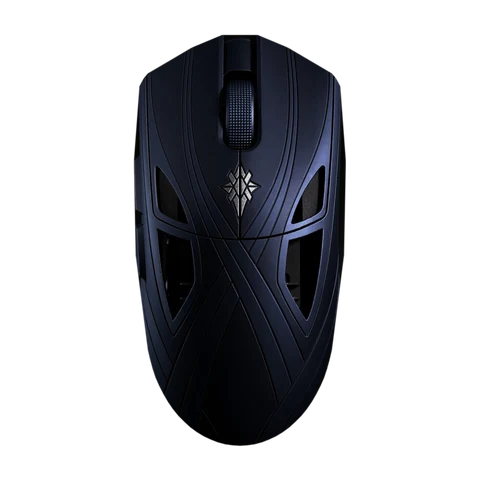
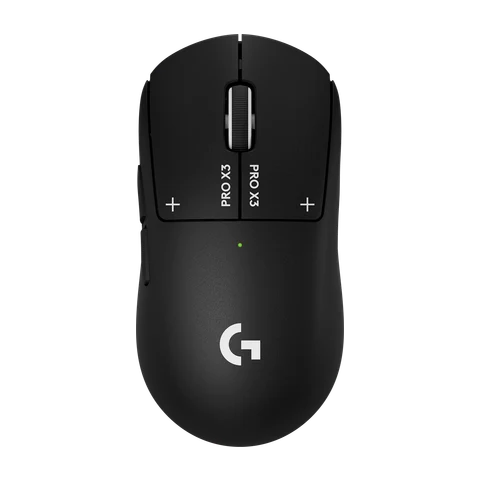
Top 5 gaming mice
Light, fast and accurate: the mice we’d pick right now.
How it works
Mouse acceleration makes the cursor move further when you move the mouse faster, even over the same distance on your desk. It makes muscle memory unreliable, so most gamers turn it off. The usual culprit is Windows’ "Enhance pointer precision"; some mouse apps add their own.
You move between two marks on your pad several times slowly and several times fast. The test adds up how far the cursor went after Windows processed the movement. With no acceleration, both speeds give the same distance; with acceleration, fast moves go further.
Your hand won’t stop exactly on the marks every time, so differences under 6% count as none, and the list shows each stroke. Games that use raw input skip Windows acceleration, but menus, the desktop and some games don’t.
Something wrong with this tool, or an idea for a new one? Tell us →
How to turn it off
Windows
Settings › Bluetooth & devices › Mouse › Additional mouse settings › Pointer Options: untick "Enhance pointer precision". Keep pointer speed at 6 of 11.
Mouse software
Check your mouse’s app (Logitech G Hub, Razer Synapse and others) for acceleration, "angle snapping" or "smoothing" and turn them off.
In games
Look for "raw input" (turn on) and "mouse acceleration" or "mouse smoothing" (turn off) in each game’s settings.
Check again
Run the test once more after changing settings. A clean result is under 6% with steady strokes.
Related tools
More tools you might like