Pen / Tablet Test
Check that your drawing tablet or stylus sends pressure, tilt and smooth movement.
- Device
- –
- Pressure
- –
- Tilt X / Y
- –
- Reports per second
- –
Draw here with your pen. Press harder for thicker lines; flip to the eraser end to erase.
- Rotation
- –
- Hovering
- –
- Pen buttons
- –
- Highest pressure
- –
- Pressure steps seen
- –
Values come straight from your browser’s pen events, every report included. Pressure 0.500 with a mouse is normal: mice have no pressure.
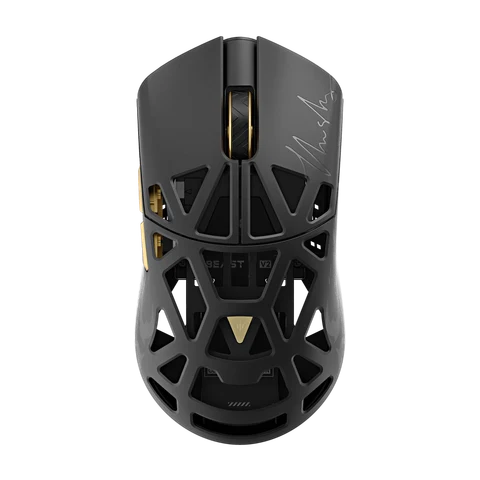
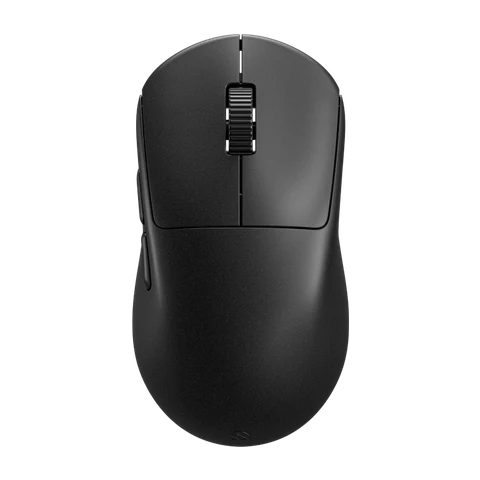
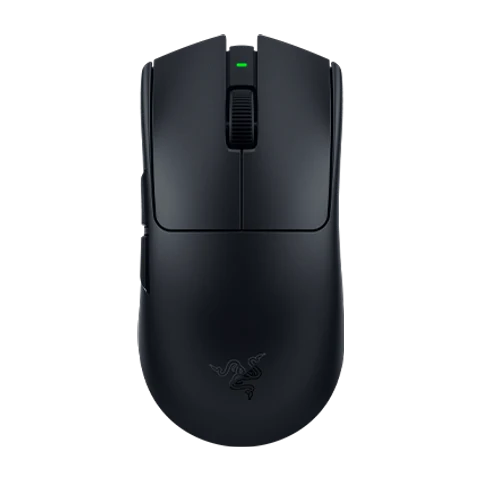
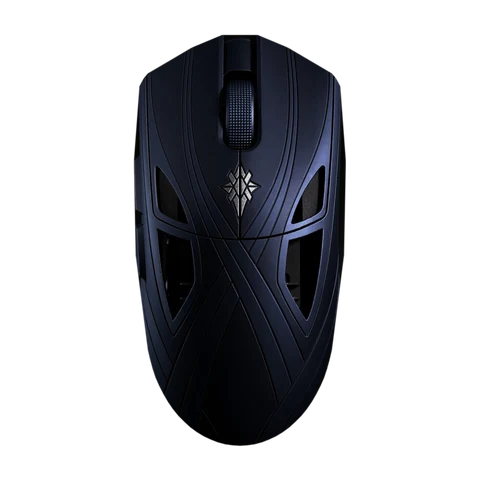
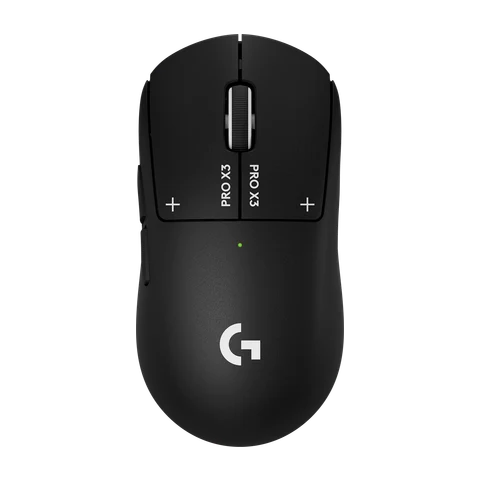
Top 5 gaming mice
Light, fast and accurate: the mice we’d pick right now.
How it works
Draw on the board with your pen. The browser reports what the pen sends: pressure from 0 to 1, how far the pen tilts in each direction, its rotation (only some pens), whether it’s hovering above the surface, and the barrel button and eraser.
Reports per second shows how often the pen sends its position while you move: higher means smoother lines and aiming. Every report is counted, not just one per screen frame. "Pressure steps seen" counts different pressure values; a good pen shows hundreds as you press slowly harder.
For osu! and other games you mostly care about smooth, steady reports and no gaps. If pressure or tilt shows nothing, your tablet driver may be in mouse mode, or the browser may not get pen data from it (try Windows Ink on).
Something wrong with this tool, or an idea for a new one? Tell us →
Tablet tips
No pressure?
With Wacom, turn on "Use Windows Ink" for the browser. With OpenTabletDriver, use the Windows Ink output mode to get pressure in apps.
Gaps in lines
Gaps or jumps mean dropped reports. Try another USB port (not a hub), a shorter cable, and close apps that use the tablet.
For osu!
Most players use absolute mode with a smaller area than the full tablet. Work out yours with the osu! Tablet Area Calculator.
Smoothing
Driver smoothing makes lines neat but adds delay. For games, keep it low or off.
Related tools
More tools you might like